How to Make a Minecraft Skin: Complete Beginner's Guide [2026]

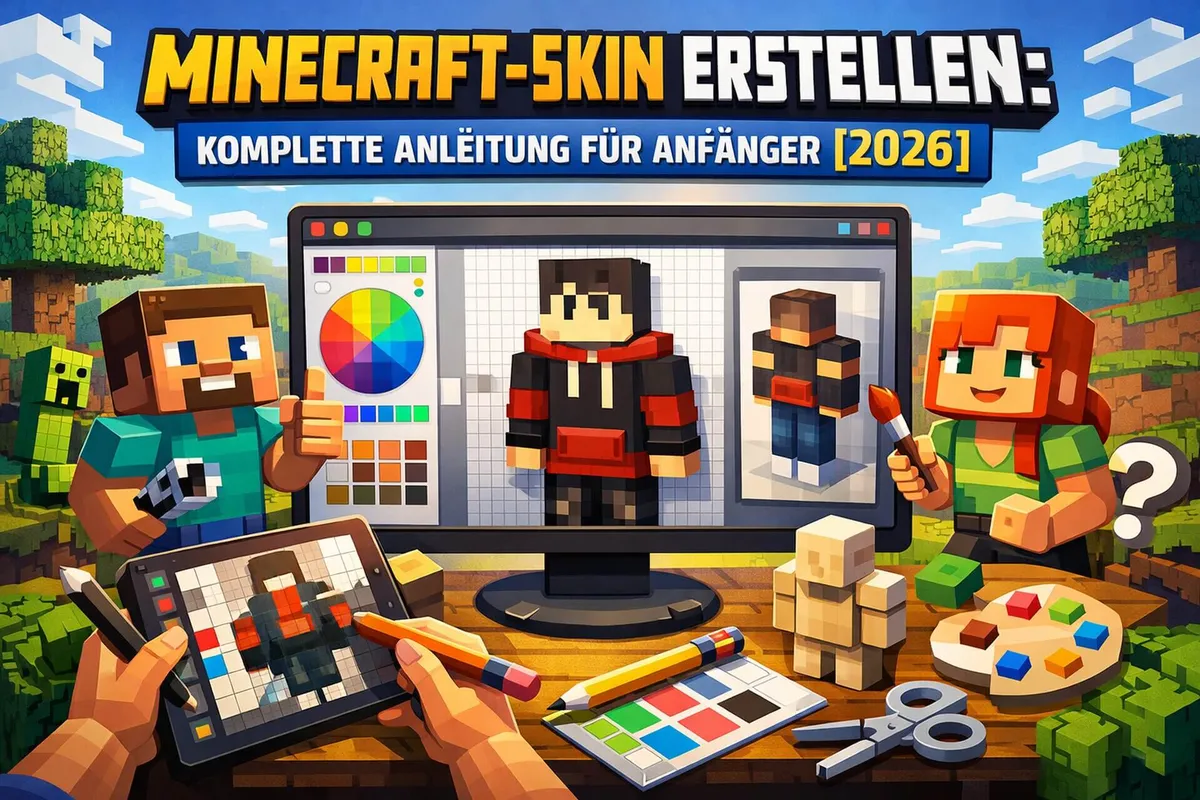
Your own Minecraft skin is more than just a look – it’s your digital identity in the world of Minecraft! Whether it’s a cool design, your favorite character or a creative fantasy figure: with a custom skin you stand out from millions of other players and show who you are. In this guide you’ll learn step by step how to make your own Minecraft skin – whether on a PC, phone or tablet. We’ll show you free tools, give practical tips and explain how to get your finished skin into the game. This article is for players of all ages and also helps parents understand what their kids are actually doing.
What is a Minecraft skin, anyway?
A skin is basically a texture – in other words, an image – that is placed over your character in Minecraft. Think of it like a costume: the shape of your character always stays the same (the so-called “model”), but you can change the way it looks however you like.
Technically speaking, a Minecraft skin is a PNG image file with special dimensions:
- 64 × 64 pixels (standard, modern version) – allows detailed designs with different arms and legs
- 64 × 32 pixels (older version) – a simpler format with less detail
This small image file is “unfolded” and applied to your character so that specific areas of the image are placed on your figure’s head, arms, legs and body.
Steve vs. Alex: the two basic models
Minecraft offers two different player models:
- Steve (classic/wide): the original model with wide, blocky arms (4 pixels across)
- Alex (slim): a slimmer model with thinner arms (3 pixels across) and slightly lower shoulders
Both models have the same proportions for the head, body and legs – only the arms are different. When you make a skin, you have to decide which model you want to use.
Why make your own skin?
There are lots of good reasons why millions of Minecraft players make or use their own skins:
- Individuality: on multiplayer servers with hundreds of players, you can quickly tell who is who
- Getting creative: designing your own skins is fun and builds artistic skills
- Favorite characters: play as your favorite figure from movies, TV shows or other games
- Roleplay: on roleplay servers, a fitting skin is part of the story
- Coordinating with friends: create team skins or matching outfits together
For parents: making skins is a creative and technical activity that is good for kids. Along the way they learn basic pixel art, working with color and technical processes such as file management and uploading.
Method 1: online editors (easiest for beginners)
Online editors are perfect for beginners. You don’t need to install anything and can get started right in your browser. Here are the best free tools:
Nova Skin Editor (minecraft.novaskin.me)
Nova Skin is one of the most popular and user-friendly online editors. It offers:
- A real-time 3D preview
- Brush, eraser, paint bucket and color picker
- Templates to edit
- Saving and direct download
- Completely free, no sign-up needed
Here’s how it works:
- Open
minecraft.novaskin.mein your browser - Choose between “Steve” (wide) or “Alex” (slim)
- Use the tools on the left to paint:
- Brush: draw individual pixels
- Paint bucket: fill whole areas with one color
- Color picker (eyedropper): pick a color from the skin
- Eraser: delete pixels (makes them transparent)
- Rotate the 3D model to see all sides
- When you’re done, click “Save” and download the skin
PMCSkin3D (PlanetMinecraft)
PMCSkin3D from Planet Minecraft is another excellent editor with:
- A beginner edition (simple) and an advanced edition
- 3D editing directly on the model
- A pose mode to animate your figure
- A huge community gallery with millions of ready-made skins
- The option to publish directly on PlanetMinecraft
Especially cool: you can load background models (e.g. different Minecraft environments) to see what your skin would look like in the game.
SkinMC Editor
SkinMC is a minimalist but powerful editor:
- A very clear interface
- Import existing skins by username
- A brightness slider to darken or lighten colors
- Fast export
MinecraftSkins.com Editor
This editor stands out with:
- A huge skin library to browse
- Importing other players’ skins
- Very easy to use
Method 2: desktop software for advanced designs
If you want more control and more professional tools, you can use desktop programs:
Blockbench (recommended for kids aged 10 and up)
Blockbench is a free, open-source program developed specifically for Minecraft:
- Completely free and open source
- Available for Windows, Mac and Linux – and as a web app right in your browser (web.blockbench.net)
- Available in many languages
- Its own “Minecraft Skin” project format for painting player skins
- Professional 3D editing tools
- Lets you create animations
- Design your own models and blocks
For parents: Blockbench is an excellent program for introducing kids to 3D modeling. It’s open source, free, has no ads and builds technical skills.
Installation:
- Go to
blockbench.net - Download the right version for your operating system
- Install the program
- Launch Blockbench and choose the “Minecraft Skin” format for a new project
GIMP or Photoshop (for experienced users)
Image editing programs like GIMP (free) or Photoshop (paid) give you maximum control:
- Download a skin template
- Open it in your image editor
- Paint directly on the flat template
- Save it as a PNG with a transparent background
Note: this method is more complicated, because you need to understand which areas of the template belong to which body parts. For beginners, the specialized skin editors are much easier.
Method 3: mobile apps for on the go
If you want to make a skin on your phone or tablet, there are lots of apps. Important for parents: almost all of them are ad-funded and offer in-app purchases or subscriptions.
Skin Editor für Minecraft (Android & iOS)
One of the most popular apps – the Android version is now called “Skin-Ersteller und 3D Editor” in the German Play Store and has more than 5 million downloads (rated for all ages, with ads and in-app purchases):
- Hundreds of ready-made templates
- Powerful drawing tools
- Import skins from websites
- Export directly to Minecraft
- Supports HD skins (128×128 pixels)
Available on: Google Play Store and Apple App Store
Skinseed (iOS & Android)
A very versatile skin editor with some special features:
- AI skin generator: describe what you want and the AI creates a skin
- More than 10 million searchable skins, according to the app description
- Import skins by player name, one-tap export to Minecraft
- 3D preview with poses, including 128×128 skins
- Community features for sharing
Note for parents: in the App Store, Skinseed is rated 13+ (chat, user-generated content, ads). There are weekly and monthly subscriptions.
KI-Skin-Ersteller und Editor (iOS, formerly “Skins Schöpfer für Minecraft”)
This app used to be called “Skins Schöpfer” and is now listed in the App Store under a new name:
- AR mode: bring your skin into the real world with augmented reality
- A multi-layer system for complex designs
- AI-generated skins
- Import and export as an image file
Watch out for the subscription trap: according to the App Store, a weekly subscription (listed at around $12 per week) starts automatically after a three-day trial unless you cancel in time. The app also shows ads. Only let kids use it with purchases blocked.
Step by step: making your first skin
Here is a simple guide for complete beginners using the Nova Skin Editor:
Step 1: open the editor and choose a model
- Open
minecraft.novaskin.me - Choose between “Steve” (classic) or “Alex” (slim)
- You’ll now see a blank 3D model
Step 2: set the base colors
- Choose a base color from the color palette
- Use the paint bucket to fill large areas quickly:
- Click on “Body” and fill it with a skin tone
- Click on “Head” for the face
- Fill the arms and legs
- Tip: rotate the model to edit all sides
Step 3: add details
- Switch to the brush tool
- Zoom in for precise work
- Add details:
- Face: eyes, nose, mouth
- Clothing: shirt, pants, shoes
- Accessories: glasses, hat, belt
- Hair: a hairstyle on the head
Tip for beginners: keep it simple at first! A few clear lines and high-contrast colors are enough for a cool skin.
Step 4: shadows and highlights
To make your skin look more alive, you can add shadows and highlights:
- Shadows: use darker versions of your colors on the sides and at the bottom
- Highlights: use lighter shades on the top and front
Many editors have a brightness slider to make colors lighter or darker quickly.
Step 5: save and download
- Click “Save” or “Download”
- The file is downloaded as a PNG (e.g. “skin.png”)
- Remember where the file was saved (usually in the “Downloads” folder)
Done! You’ve now made your first Minecraft skin. All that’s left is to load it into the game.
Uploading your skin to the game: Java Edition
For Minecraft: Java Edition (PC/Mac/Linux), you upload skins via the official Minecraft website:
Method via the Minecraft website
- Open
www.minecraft.netand log in with your Microsoft account - Go to your profile (click your profile picture in the top right)
- Select the “Skins” tab
- Click “New Skin”
- Click “Browse” and select your downloaded skin file (.png)
- Give your skin a name
- Choose between “Classic” (Steve) or “Slim” (Alex)
- Click “Save & Use”
Done! The next time you start Minecraft: Java Edition, you’ll see your new skin. It can take a few minutes before the skin becomes visible to other players on servers.
Method via the Minecraft Launcher
- Open the Minecraft Launcher (but don’t start the game yet)
- Make sure “Java Edition” is selected
- Click the “Skins” tab at the top
- Click “New Skin”
- Upload your skin file and choose the model
- Hover over the skin and click “Use”
Tip: Mojang regularly releases free official skin collections on minecraft.net for big updates – in 2026, for example, for “Tiny Takeover”, “Chaos Cubed” and “Wilderness Bound”. You can upload those PNG files the same way.
Uploading your skin to the game: Bedrock Edition
Bedrock Edition (Windows, Xbox, PlayStation, Nintendo Switch, phones and tablets) works a little differently:
For Windows, Android, iOS and iPadOS
On these platforms you can upload your own skins:
- Open Minecraft: Bedrock Edition
- In the main menu, click “Dressing Room” or “Profile” in the bottom right
- Choose an empty character slot
- Click “Create Character”
- Choose “Classic Skins”
- Click “Owned”
- Click “Choose New Skin” (sometimes called “Import” or shown as a “+” icon)
- Select your skin file from your device
- Click “Equip” or “Confirm”
For consoles (Xbox, PlayStation, Nintendo Switch)
On consoles you can’t upload your own PNG files. Instead, you have two options:
- Ready-made skins from the Marketplace: the game offers lots of free and paid skin packs
- Character Creator: a built-in editor that lets you put together your own character from hundreds of body parts, hairstyles and pieces of clothing
Note for parents: the restrictions on consoles are there for safety and quality control. They prevent inappropriate content from getting into the game.
Finding and downloading ready-made skins
You don’t necessarily have to make a skin from scratch. There are huge libraries with millions of ready-made skins. For pumpkin heads, witches and ghosts, see our post on Halloween in Minecraft.
NameMC
NameMC (namemc.com) is one of the largest Minecraft skin databases:
- Millions of skins
- Searchable by category, trend and color
- Search for the skins of famous YouTubers and streamers
- See which skins are popular right now
- One-click download
PlanetMinecraft
A huge community platform with:
- High-quality, curated skins
- Categories: animals, fantasy, games, movies, anime, etc.
- A rating system
- Discussions and comments
The Skindex
Another popular site:
- Sorted by category
- Search function
- Top lists
- Its own editor for making changes
Miners Need Cool Shoes
An older but tried-and-tested site with lots of classic designs.
Tips for cool skins: from beginners to pros
For beginners
- Start simple: pick a template and only change the colors
- Use contrast: light and dark colors make your skin stand out more
- Big shapes first: fill large areas first, then the details
- Mind the symmetry: most editors have a mirror function
- Less is more: a clear, simple design is often better than a cluttered one
For advanced players
- Work with layers: Minecraft skins have a second “overlay” layer for 3D effects
- Pixel art techniques: learn shading and dithering (color transitions)
- Gather inspiration: look at other people’s skins and learn from them
- Test in the game: what does the skin look like in different lighting?
- Animated effects: use transparent areas cleverly for “floating” elements
Design ideas
- Jobs: doctor, police officer, firefighter, chef
- Animals: cat, dog, panda, dragon
- Fantasy: knight, wizard, elf, demon
- Modern fashion: hoodie, sneakers, cap
- Characters: superheroes, anime characters, movie characters
- Seasons: winter outfit, summer look, Halloween, Christmas
Safety and caution when downloading
This section is especially important for parents:
Use safe sources
Only download skins from trustworthy sites:
- ✅ The official Minecraft website (minecraft.net)
- ✅ NameMC (namemc.com)
- ✅ PlanetMinecraft (planetminecraft.com)
- ✅ Nova Skin, SkinMC, MinecraftSkins.com
- ✅ The Skindex, Miners Need Cool Shoes
Warning signs of unsafe sites
- ❌ Sites that require you to install programs
- ❌ Sites with lots of pop-ups and aggressive advertising
- ❌ Sites that ask for personal data (passwords, credit cards)
- ❌ Sites that offer “premium hacks” or “cheats”
- ❌ Sites without HTTPS (insecure connection)
Avoiding inappropriate content
Some skins aren’t suitable for children. Watch out for:
- No designs that glorify violence or are disturbing
- No inappropriate or revealing skins
- No offensive or discriminatory symbols
Tip for parents: browse skins together with your child and talk about what is appropriate. Most reputable platforms have reporting features for inappropriate content.
Privacy in apps
If you use mobile apps, pay attention to:
- Which permissions does the app ask for? (photos, camera, etc.)
- Is there a privacy policy?
- Is data shared with third parties?
- Are there in-app purchases? (consider blocking them)
Common problems and solutions
Problem: skin isn’t showing up
Solutions:
- Wait a few minutes – the servers need time to update
- Restart Minecraft
- Check that you’re connected to the internet
- Make sure you’re logged in with the right account
- Check that the right model (Steve/Alex) was selected
Problem: skin looks distorted or wrong
Solutions:
- Check the file size: it must be 64×64 or 64×32 pixels
- Make sure the file is saved as a PNG
- Switch between “Classic” and “Slim” – maybe the wrong model is selected
Problem: other players can’t see my skin
Solutions:
- On some servers it takes longer for skins to load
- Some servers force their own skins
- Make sure you’re online (offline mode doesn’t show skins)
Problem: can’t upload skin (Bedrock mobile)
Solutions:
- Make sure the skin file is saved on your device
- Give Minecraft permission to access files
- Save the skin to your gallery first, then import it from there
Differences between Java and Bedrock Edition
It’s important to understand that there are differences:
| Feature | Java Edition | Bedrock Edition |
|---|---|---|
| Platforms | PC, Mac, Linux | Windows, Xbox, PlayStation, Switch, phones/tablets |
| Upload your own skins | ✅ Yes, always | ✅ Yes (except on consoles) |
| Skin format | 64×64 or 64×32 PNG | 64×64, 64×32 or 128×128 PNG |
| HD skins | ❌ Only with mods | ✅ Yes (128×128) |
| Character Creator | ❌ No | ✅ Yes, built in |
| Marketplace | ❌ No | ✅ Yes, free & paid skins |
| Capes | Only through events and promotions, not for sale | In the Dressing Room, some via the Marketplace |
| 3D elements | Only with mods | Possible in the Character Creator |
Important: a skin made in the Bedrock Edition Character Creator can not be transferred 1:1 to Java Edition, because the Character Creator uses 3D models that Java doesn’t support. Classic PNG skins, however, work in both versions.
Community and inspiration
The Minecraft community is huge and creative. Here’s where you’ll find inspiration and people to share with:
YouTube tutorials
There are thousands of video tutorials about making skins on YouTube:
- Step-by-step guides
- Speedpaints (artists showing how they make skins)
- Tips and tricks from pros
- Tool showcases
Discord servers and forums
Join communities to:
- Show off your skins and get feedback
- Get tips from others
- Take part in contests
- Talk with like-minded people
For parents: keep an eye on your kids’ online activities and make sure they only visit age-appropriate communities.
Skin contests
Many platforms and servers regularly hold skin contests with prizes. That’s great motivation to improve your skills!
Advanced topics
Making HD skins
HD skins have a higher resolution (e.g. 128×128 or 256×256 pixels) and offer more detail. They work:
- Natively in Bedrock Edition (up to 128×128)
- In Java Edition only with special mods such as “HD Skins” (for Fabric, also available for Minecraft 26.3) – and only players using the same mod see the HD skin
Animated elements
By cleverly using transparency and the overlay layer, you can create “floating” effects:
- A halo above the head
- Wings on the back
- Floating objects
Making skins for mobs
Not just players – Minecraft creatures (mobs) can get their own skins too:
- Resource packs let you change the textures of all creatures
- Tools like Nova Skin and PMCSkin3D support mob skins
- Every creature has its own texture template
Educational value: what kids learn from making skins
Making Minecraft skins is more than just playing around. Kids develop important skills along the way:
Creative skills
- Pixel art and design: the basics of digital art
- Color theory: which colors go well together?
- Proportions: how do I arrange elements harmoniously?
Technical skills
- File management: saving, renaming and organizing files
- Image editing: the basics of graphics programs
- Problem solving: fixing technical problems on their own
Social skills
- Self-expression: shaping their own identity
- Giving and receiving feedback: communicating constructively in communities
- Teamwork: joint skin projects with friends
Planning and patience
- Project management: from the idea to the finished result
- Fine motor skills: precise work with pixel tools
- Perseverance: complex designs take time
Tip for parents: encourage your kids to show off their creations and talk about them. It builds self-confidence and presentation skills.
Frequently asked questions about Minecraft skins (FAQ)
What is a Minecraft skin?
A Minecraft skin is a texture (a PNG image file) that is placed over your player character and changes how it looks. The shape stays the same, but you can design the colors, clothing and style however you like. Standard skins are 64×64 pixels.
Can I make skins for free?
Yes! There are lots of free tools: online editors like Nova Skin, PMCSkin3D and SkinMC work right in your browser with no download. Desktop programs like Blockbench are free as well. Many mobile apps also offer free basic features.
What is the difference between Steve and Alex?
Steve is the classic model with wide arms, 4 pixels across. Alex is the slim model with thinner arms, 3 pixels across, and slightly lower shoulders. Both have the same size head, body and legs. When you make a skin, you need to choose the matching model.
How do I upload a skin in Minecraft Java?
Go to minecraft.net and log in. Click on your profile, then on “Skins”. Choose “New Skin”, upload your PNG file, pick Steve or Alex, enter a name and click “Save & Use”. You can also do this in the Minecraft Launcher under the “Skins” tab. It can take a few minutes before the skin shows up everywhere.
Can I upload my own skins in Bedrock Edition?
Yes, on Windows, Android, iOS and iPadOS you can do this in the Dressing Room under “Classic Skins”. On consoles (Xbox, PlayStation, Switch) you can’t upload your own PNG files – there you have to use the Character Creator or Marketplace skins.
Why isn’t my skin showing up?
Common reasons: (1) Wait a few minutes – the servers need time. (2) The wrong model (Steve/Alex) was selected. (3) The wrong file size (it must be 64×64 or 64×32 pixels). (4) No internet connection. (5) The wrong account. Restart Minecraft and check these points.
Which skin editor is best for beginners?
Nova Skin (minecraft.novaskin.me) is good for beginners: free, right in your browser, no sign-up needed, a real-time 3D preview and simple tools. PMCSkin3D from Planet Minecraft, with its simple Basic Edition, is another very beginner-friendly option.
Where can I find ready-made skins to download?
The best sources: (1) NameMC (namemc.com) – millions of skins, searchable. (2) PlanetMinecraft – high-quality community skins. (3) The Skindex – a large library with categories. (4) MinecraftSkins.com – with a built-in editor. All of them are free but funded by ads – only download skins as PNG files, never programs.
Are skin apps safe for kids?
The well-known apps aren’t malware, but almost all of them show ads and offer in-app purchases or subscriptions – some even expensive weekly subscriptions after a short free trial. Skinseed is rated 13+ in the App Store because it has chat and content from other users. Parents should check permissions, age ratings and subscription terms and block purchases with parental controls. Only download from the official app stores.
Can I transfer a skin from Bedrock to Java?
Classic PNG skins (64×64) work in both versions – simply upload the same PNG file in Java too. BUT: skins made in the Bedrock Edition Character Creator can NOT be transferred to Java, because they use 3D parts that Java doesn’t support and can’t be exported as a PNG.
Do I need coding skills to make a skin?
No! Making skins is pure pixel art and doesn’t require any programming at all. You simply paint on a 3D model or a flat template. Modern editors are as easy as Paint – if you can draw with a mouse, you can make skins.
What are HD skins and how do I make them?
HD skins have higher resolutions (128×128 or more) for more detail. They work natively in Bedrock Edition (up to 128×128). For Java Edition you need mods such as “HD Skins”. Make them just like normal skins, only on a bigger canvas. Note: not all servers support HD skins.
Can I make a skin together with friends?
Yes! You can design together: (1) Use online editors and share your screen (e.g. via Discord). (2) Send the PNG file back and forth and take turns working on it. (3) Plan it together and let one person build it. (4) Create matching team skins with similar designs.
How long does it take to make a good skin?
That depends on your skill and how complex the design is: beginners with a simple design: 15–30 minutes. More advanced players adding details: 1–2 hours. Complex, highly detailed skins: 3–5 hours or more. You’ll get faster over time! Start simple and slowly increase the complexity.
Can I sell my skin or make money with it?
In Bedrock Edition skins can be sold on the Marketplace, but only by official Microsoft Marketplace Partners, not by individual players. In the community you can offer skins on a donation basis. IMPORTANT: don’t use copyrighted characters! Only your own, original designs may be sold.
Transparency & sources
All information in this article is based on publicly available sources and was researched on January 13, 2026 and last checked and updated on October 15, 2026.
Primary sources:
Official Minecraft website, Nova Skin Editor, PMCSkin3D, SkinMC, MinecraftSkins.com
Secondary sources & analysis:
Minecraft Wiki, NameMC, Blockbench, Play&Code (German-language coding courses for kids), various community forums and tutorial videos
Mobile apps:
Skin Editor für Minecraft (Google Play), Skinseed (App Store), KI-Skin-Ersteller und Editor, formerly Skins Schöpfer (App Store)
Note: tool names, URLs and features can change. The basic principles of making skins stay the same, though. If you run into problems, we recommend checking the official support pages of the tools in question.