How to Adjust Your Minecraft Settings

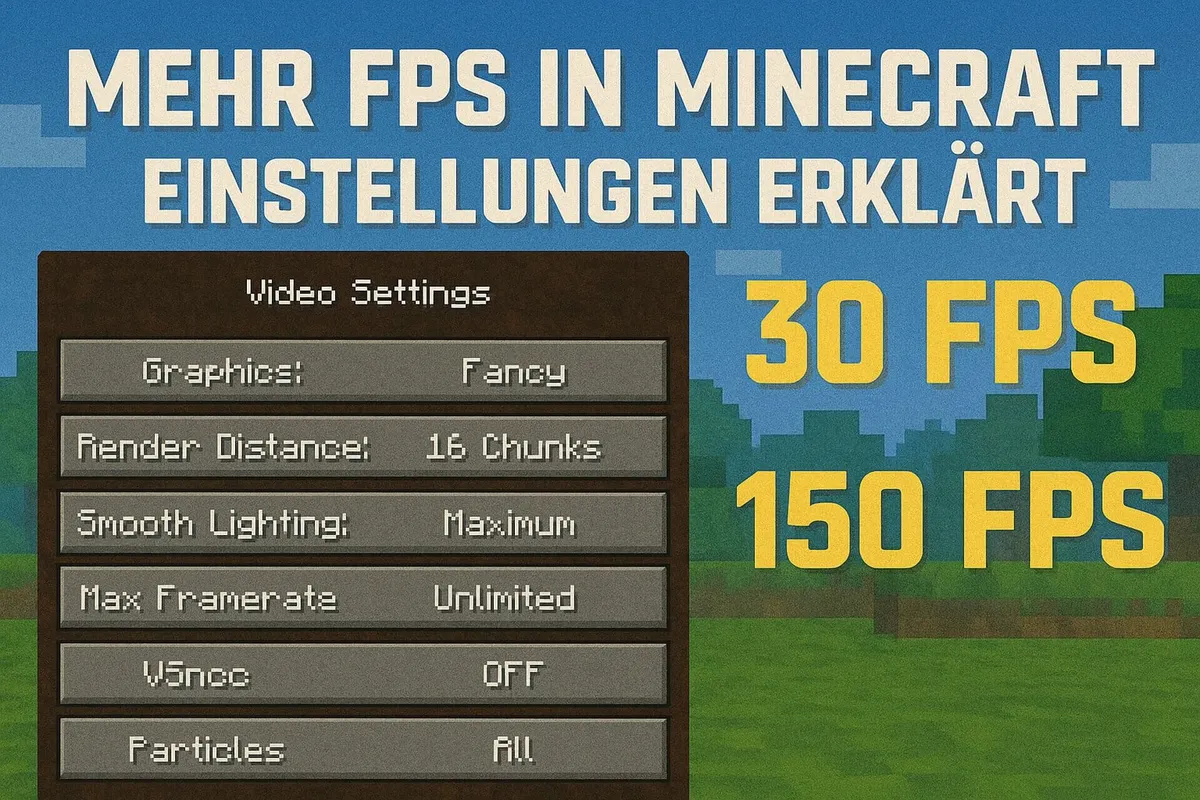
Minecraft’s settings cover much more than graphics: this is where you decide how smoothly the game runs, how you control it, what you see and hear – and, importantly for parents, who can chat with your child. This article covers the options as of Java Edition 26.3 “Wilderness Bound” and Bedrock Edition 26.50 (October 2026): first the settings for more FPS, then controls, accessibility and parental controls.
In short: For more FPS, lower the render distance first (8 to 12 chunks), then set the preset to “Fast”. For parental controls, the game menu isn’t what matters most – your child’s Microsoft account is.
Where to Find the Settings
- Java Edition: From the main menu, or in-game with
Esc, click Options…. There you’ll find Video Settings…, Controls…, Chat Settings…, Accessibility Settings… and Online…, among others. - Bedrock Edition (Windows, console, tablet, phone): click Settings in the main menu. Sections such as Video, Controls, Accessibility and Account are listed on the left.
Video Settings (Java Edition)
Since late 2025 (version 1.21.11), the video settings have a “Quality & Performance” section with a Preset. It replaced the old individual graphics modes:
| Preset | What it does |
|---|---|
| Fast | saves performance, e.g. shows less rain and snow |
| Fancy | default, a balance of quality and performance |
| Fabulous! | uses shaders for weather, clouds and particles behind glass and water – needs the most performance |
| Custom | appears as soon as you change an individual option yourself |
The most important individual options for more FPS:
| Option | Effect | Recommendation for weaker PCs |
|---|---|---|
| Render Distance | how many chunks (16×16-block areas) you can see, 2 to 32 | 6–10 |
| Simulation Distance | how far away animals, plants and redstone keep running | 5–8 |
| Smooth Lighting | softer shadows | Off |
| Particles | smoke, sparks, raindrops (default: Decreased) | Minimal |
| Clouds | Fancy, Fast or Off | Off |
| Entity Distance | how far away mobs and items are visible | 75% |
| Biome Blend | smooth color transitions between biomes | Off or 3×3 |
| Entity Shadows | shadows under mobs | Off |
| Improved Transparency | weather and particles behind glass and water | Off |
| Texture Filtering | sharper textures at an angle | None |
| Chunk Builder | when new chunks are built | Threaded (default) |
Render distance makes by far the biggest difference. Each extra step means another ring of chunks has to be loaded and drawn in every direction.
New since Java 26.2: Under Graphics API you can choose “Prefer Vulkan (experimental)” instead of OpenGL. It may run faster on some computers and cause problems on others. According to the Minecraft Wiki, Vulkan is set to become the default from version 26.4. If you don’t want to experiment, leave it on “Default”.
Max Framerate and VSync
- Max Framerate: The default is 120 FPS. If your laptop gets hot and loud, cap it at 60 FPS – that’s enough for smooth play and saves battery and fan noise.
- VSync: Matches the frame rate to your screen and prevents “torn” images. VSync is on by default. Turning it off can raise the frame rate, but input doesn’t always feel smoother. Try both.
- Reduce FPS when: Set to “AFK” by default. If you don’t touch anything for a minute, Minecraft caps the frame rate at 30 FPS, and after another nine minutes at 10 FPS. That saves power when you’re waiting at a farm, for example.
Graphics in Bedrock Edition
In Bedrock Edition, the most important setting is called Graphics Mode. According to the Minecraft Wiki, there are four levels:
| Graphics mode | Who it’s for |
|---|---|
| Simple | older or weaker devices, phones |
| Fancy | default |
| Vibrant Visuals | modern graphics with lighting and shadow effects, only on supported devices |
| Ray Traced | only with matching resource packs and an RTX graphics card |
You can also lower the render distance (the maximum depends on the device), cap the frame rate (30 to 60 FPS or unlimited) and turn off Beautiful Skies and Smooth Lighting. On tablets and phones, a lower render distance is especially worthwhile because it also saves battery.
Mods, Resource Packs and Shaders
High-resolution resource packs and shaders look great but cost a lot of performance. If your game stutters, remove them first. We show how to install and remove them in How to Install a Texture Pack or Shader Pack.
For Java Edition there are also performance mods that can make the game noticeably faster. Well-known ones are OptiFine and Sodium (for the Fabric mod loader). OptiFine adds its own menu with options such as “Chunk Updates” or “Lazy Chunk Loading” that don’t exist in regular Minecraft. Important: after big updates, it often takes a while for mods to be released for the new version. Only download them from the official project page. How to install mods is covered in How to Install Minecraft Mods.
Adjusting the Controls
It’s worth taking a look at Controls… (Java) or Controls (Bedrock), especially for younger kids:
- Sneak and Sprint: Instead of holding the key down, you can set them to “Toggle”. One press turns it on, the next turns it off. That’s easier on the fingers during long building projects.
- Attack and Use: Since 2025, these two keys can also be set to “Toggle” in Java Edition.
- Auto-Jump: Automatically jumps onto blocks when you walk into them. Handy for beginners, rather annoying for experienced players. It’s off by default in Java Edition.
- Sensitivity: How quickly the camera turns with the mouse. If you feel dizzy while playing, turn it down.
- Key binds: Every key can be changed, for example for left-handed players.
For PvP (fighting other players), many turn down the FOV Effects so the image doesn’t zoom while sprinting, switch off View Bobbing and show the Attack Indicator as a crosshair to see the right moment for the next hit.
Accessibility
Minecraft now has many options for kids and adults with disabilities – and for anyone who feels unwell from fast-moving images. In Java Edition, under Accessibility Settings:
- Narrator: reads menus and chat aloud.
- Closed Captions: shows sounds as text, for example “Creeper hisses”. Helpful for kids with hearing loss or when playing without sound.
- High Contrast and High Contrast Block Outlines: make menus and the targeted block easier to see.
- Hide Sky Flashes: stops the sky from lighting up during lightning. Useful for light sensitivity.
- Distortion Effects, FOV Effects, Darkness Pulsing, Damage Tilt and View Bobbing: reduce shaking, zooming and flickering. If playing makes you feel sick, turn these down first.
Bedrock Edition offers similar options under Accessibility: text-to-speech for menus and chat, captions, hiding sky flashes, less camera shake and an extra-large user interface.
Parental Controls: Chat and Multiplayer
For parents, the most important tool is not the game menu but your child’s Microsoft account. All editions use it, and the rules there apply permanently – even if your child changes something in the game.
In the Microsoft account (as a parent at xbox.com/settings or in the Xbox Family Settings app, under Privacy & online safety):
- Join multiplayer games: If this is off, your child can’t join servers, Realms or other players’ worlds. In Java Edition, the “Multiplayer” button is then grayed out.
- Voice and text communication: If this is blocked, your child can still play with others but won’t see chat messages from other players.
- Friend requests and invites: decide who is allowed to contact your child.
Microsoft Family Safety adds screen time, spending limits for Marketplace purchases and reports on playing time.
In the game (Java Edition):
- Chat Settings → Chat: “Shown”, “Commands Only” or “Hidden”. With “Hidden”, your child sees no messages.
- Web Links and Prompt on Links: Keep “Prompt on Links” on so a warning appears before a link from chat opens.
- Online…: Since version 26.2 there’s a Friends List here that you can turn on or off, as well as a link to the Xbox Settings. Allow Server Listings decides whether servers may show your child’s name in public player lists.
In the game (Bedrock Edition): In the world settings you decide whether multiplayer is on and who can join (invite only, friends only or friends of friends). The account settings include a profanity filter and an option to only show trusted skins.
You’ll find more about playing safely in Understanding Minecraft: An Honest Guide for Worried Parents and What Age Should Kids Start Playing Minecraft?.
What Helps Outside of Minecraft
- Update your graphics driver: New drivers often fix stutters and crashes.
- Close background programs: A browser with lots of tabs, video recording or downloads all cost performance.
- Keep your laptop plugged in: Many laptops throttle graphics performance on battery.
- Memory (Java Edition): In the Minecraft Launcher, under Installations → Edit → More Options, you can set in the JVM arguments how much RAM Minecraft may use. For the regular game without mods, the default is usually enough. More RAM mainly helps with big modpacks and high render distances.
Note: the video above is in German. It was made before the new presets. Most of the tips still apply; only the menus look a bit different now.
Frequently Asked Questions
Which Minecraft settings give you the most FPS?
A lower render distance helps most, for example 8 to 12 chunks instead of 16 or more. After that, the “Fast” preset, fewer particles, clouds off and a lower simulation distance help. In Bedrock Edition, set the graphics mode to “Simple”.
What is the best render distance in Minecraft?
There’s no single best number. On older laptops, 6 to 10 chunks usually run smoothly; on a good gaming PC, 16 to 32 work too. Set the value so the game doesn’t stutter when you move quickly.
What do Fast, Fancy and Fabulous mean in the video settings?
They’re Java Edition presets for the “Quality & Performance” section. “Fast” saves performance, “Fancy” is the default and a balance of quality and performance, and “Fabulous!” uses shaders to render weather, clouds and particles behind glass and water. If you then change something by hand, it shows “Custom”.
How do you turn off chat in Minecraft?
In Java Edition, go to Options, then Chat Settings, and set “Chat” to “Hidden” or “Commands Only”. To block chat and voice permanently and across all editions, use the privacy settings of the Microsoft account at xbox.com or in the Xbox Family Settings app.
How can I block multiplayer for my child?
Through your child’s Microsoft account. Sign in as a parent at xbox.com/settings or in the Xbox Family Settings app and, under Privacy & online safety, turn off the option to join multiplayer games. Your child then can’t join servers, Realms or other players’ worlds, in either Java or Bedrock Edition.
Conclusion
For a smooth game, two quick changes are usually enough: lower the render distance and set the preset to “Fast” (Java) or the graphics mode to “Simple” (Bedrock). After that, it’s worth checking controls and accessibility – toggle instead of hold, fewer wobble effects and captions make the game more comfortable for many kids. And if you’re a parent who wants to limit chat or multiplayer, the most reliable place to do that is your child’s Microsoft account, not the game menu.