How to Install a Minecraft Map on Your Server

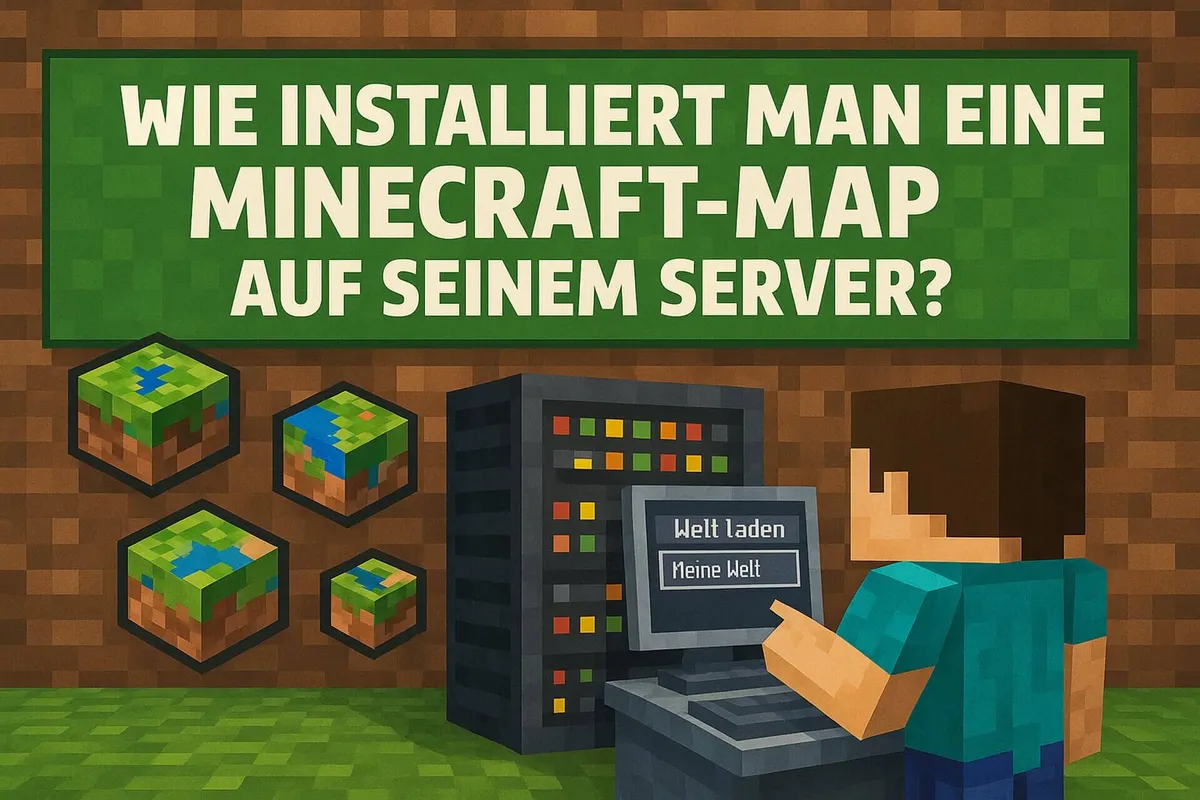
Minecraft is famous for its huge, player-made world full of creative possibilities. One of the best ways to expand your own gameplay experience is by installing custom maps. These maps offer unique worlds, challenging adventures or complex puzzles and make the game even more exciting. In this detailed guide, I’ll explain step by step how to download and install a Minecraft map so you can jump right in.
Finding a Minecraft Map
The first step, before you even start the installation process, is finding a Minecraft map you want to play. Luckily, there are lots of websites where you can download free, high-quality maps. The most popular site is Planet Minecraft, where you can download not just maps but all kinds of Minecraft content.
This site offers a huge selection of different map types: from adventure maps to parkour and puzzle maps, all the way to huge building projects and minigames. Every map has a detailed description and screenshots that give you an overview of the map’s content and theme.
https://www.planetminecraft.com
Before you download a map, you should make sure it’s suitable for your version of Minecraft. Most maps are optimized for current versions of Minecraft, but there are also many older maps that are meant for older versions.
Downloading a Minecraft Map
Once you’ve found the map you want to play, you need to download it. Most maps are packed in .zip or .rar format. This is an archive that contains the map data you need to use it in your game.
- Go to the map’s download page.
- Click the download button (make sure you choose the right version of the map for your Minecraft version).
- Save the file somewhere you can easily find it again, for example on your desktop or in a dedicated folder for Minecraft downloads.
The downloaded file will usually be a compressed file, so make sure you use an extraction program like WinRAR, 7-Zip or the built-in Windows extractor to extract the file.
Unzipping the Map
Before you can use the map in Minecraft, you need to unzip the downloaded .zip or .rar file. This is an important step, because the map files are stored in an archive and can’t be used directly by Minecraft without being extracted.
- Right-click the downloaded file.
- Choose “Extract All” or a similar option, depending on your extraction program.
- Choose the location where you want to put the map files – a folder on your desktop or a dedicated folder for Minecraft maps is ideal.
Once the extraction is complete, you should find a folder with the map’s name that contains all the relevant files and folders. If the map requires additional resource packs or modifications, this is usually mentioned in the map’s description.
Moving the Map into the Right Minecraft Folder
To make the map available in Minecraft, you need to move it into the right folder on your computer. Here are the steps to do this:
- Open the Minecraft Launcher.
- Go to the settings and click Open folder. Alternatively, you can open the folder manually:
- On Windows:
C:\Users\[YourUsername]\AppData\Roaming\.minecraft\saves - On macOS:
~/Library/Application Support/minecraft/saves - On Linux:
~/.minecraft/saves
- On Windows:
- Drag the folder of the downloaded map (which contains the unzipped contents of the .zip/.rar file) into the saves folder.
Make sure you move the entire folder and not just the files inside it, because Minecraft only recognizes the whole folder as a valid map.
5. Starting the Map in the Game
Now it’s time to play the map in Minecraft. Follow these steps to start the map:
- Open Minecraft and go to Singleplayer in the main menu.
- You should now see the new map in the list of available worlds. If you moved the folder correctly, the map will be listed there.
- Click the map’s name to load it, and start the game.
You can now play in the downloaded world, which was created especially for Minecraft. Depending on the type of map, you’ll face new challenges, quests or creative building projects.
Additional Tips and Notes
- Check your Minecraft version: Make sure you’re using the Minecraft version that’s compatible with the downloaded map. Sometimes certain maps require a specific version of Minecraft or special modifications to work properly.
- Mods and resource packs: Some maps need additional mods or resource packs. These are often included in the map package or mentioned in the description on the download page. Make sure you download and install all the required files before you play the map.
- Troubleshooting: If the map shows errors while loading, try downloading it again, or make sure you have all the necessary files in the right folder. In some cases, it can help to play the map in an older or newer Minecraft version.
Maps We Built in YouTube Videos
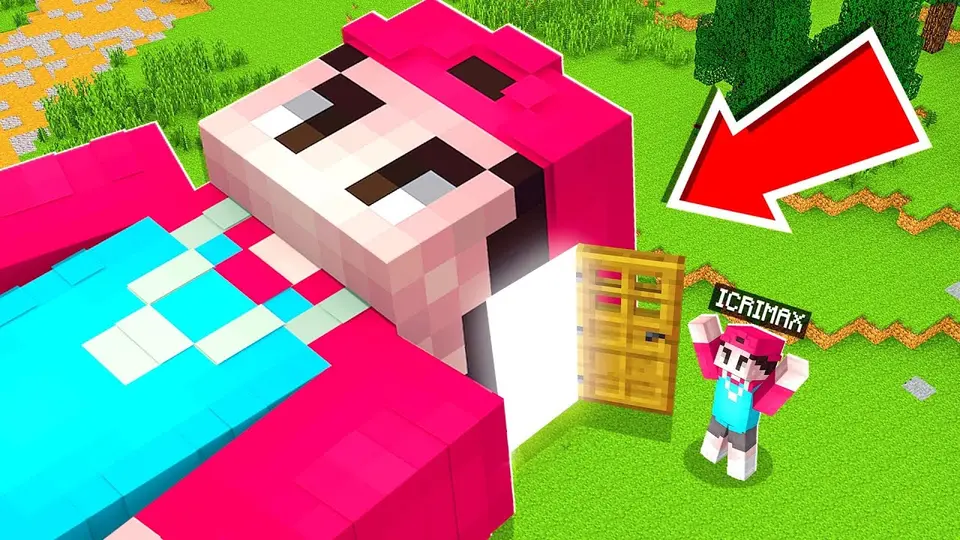
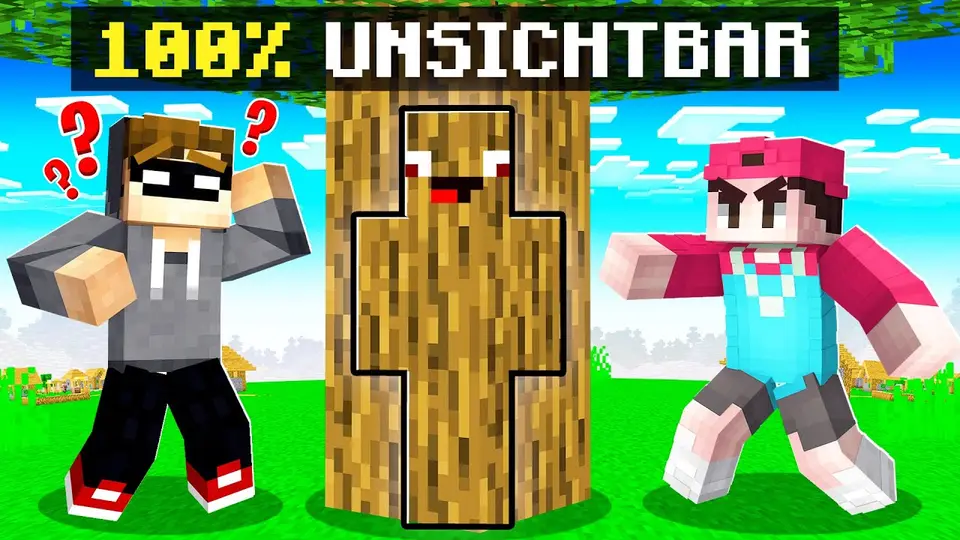
I built these maps together with a few others, and we’re still building more maps. Just join my Discord, because that’s where you can download the maps. (Both videos are in German.)
In the first map, we built a giant head of German YouTuber Icrimax (a kind of escape room), where fellow German YouTuber Avive and Icrimax had to beat every level. At the end, they had to fight each other.
The second map is a Hide and Seek (Hide and Snitch) map where 20 viewers had to hide from Avive and Danergy, and the winner gets a cash prize. The map is a school with a huge number of secret hiding spots and cool Easter eggs.
Conclusion
Installing Minecraft maps is a great way to expand your gameplay experience and discover new challenges. With the right steps – from finding a suitable map to unzipping it and moving it into the right folder – you can easily explore new worlds without much effort.